Channels
A Channel in Screenflex is the link between your playlists and your screens. It determines which playlist plays on which devices. Once a channel is created and assigned to screens, those screens will continuously display the playlist attached to that channel.
Channels allow you to organize and distribute your content efficiently—whether you are managing one location or hundreds of screens across different branches.
What Is a Channel?
A channel represents a group of screens that all play the same playlist.
Instead of assigning playlists directly to screens one by one, the channel acts as the middle layer:
- A channel contains one playlist
- A channel has one or multiple screens connected to it
- Screens will play whatever playlist is assigned to their channel
This structure makes it easy to manage large networks of screens. If you change the playlist of a channel, all screens linked to that channel update instantly.
Channels Overview Page
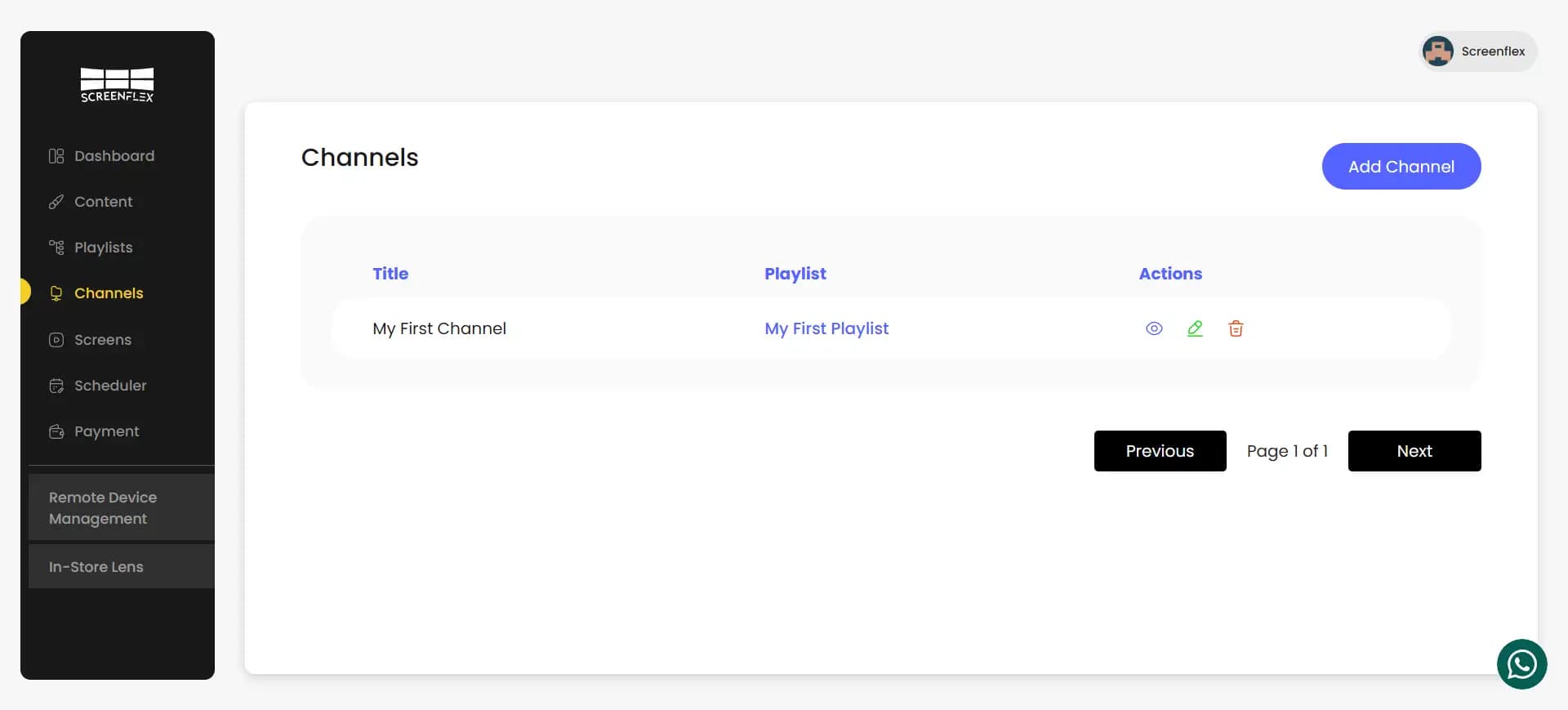
The Channels page presents all channels in a clean and structured table format, allowing you to quickly understand how content is distributed across your screens. Each channel appears as a row in the table, with essential information grouped into three columns: Title, Playlist, and Actions.
Title
This column displays the name of the channel.
Channel titles are defined during creation and are typically used to identify the purpose or location of the channel—for example, “Main Lobby”, “Checkout Area Promos”, “Breakroom News”, “Warehouse Safety”, or “Executive Office”. A clear naming convention makes it easy to manage large deployments with multiple channels.
Playlist
This column shows the playlist currently assigned to the channel. The playlist name appears as a clickable link that opens the playlist in a new tab. This allows you to review or modify the playlist without leaving the Channels page. Since each channel can contain only one playlist, this field always reflects a single assigned playlist.
Actions
The Actions column provides quick access to channel management tools. Each row includes three action icons:
- View – Opens the channel’s details, including the playlist assigned to it and the screens connected to it.
- Edit – Allows you to rename the channel, change the assigned playlist, or adjust screen associations.
- Delete – Removes the channel permanently after a confirmation prompt.
These actions ensure that channel management is efficient and accessible directly from the overview table.
Creating a Channel
To create a new channel, click Add Channel. A creation popup will appear with the following fields:
- Channel Name
A name used to identify the channel (e.g., “Lobby Screens”, “Marketing Displays”, “Production KPIs”).
- Playlist
You must choose a playlist that the channel will play.
The selected playlist becomes the default content for all screens connected to this channel.
- Screens / Players (Optional)
Select one or multiple screens to connect to the channel. Any screen you choose will immediately use this channel as its source of content.
After completing these fields, save the channel and it will appear in your channel list.
Managing an Existing Channel
When editing a channel, you can modify:
- The channel name
- The playlist it plays
- The screens linked to it
You may add or remove screens at any time. Any screen removed from a channel will stop playing that playlist and remain inactive until assigned to another channel.
Changing a Channel’s Playlist
Updating the playlist inside a channel is immediate.
Once you change the playlist:
- The channel updates instantly
- All screens connected to the channel refresh automatically
- No additional publishing or syncing is required
This makes it easy to update content across multiple devices in a single action.
Deleting a Channel
Deleting a channel removes it permanently.
If screens are still connected to the channel, you will be warned so you don’t accidentally disrupt active displays.
Once deleted, screens that were linked to the channel will stop playing content until reassigned to another channel.