Content
The Content section is where your digital signage materials are created, organized, and managed. Every visual you design—whether it’s a promotion, announcement, schedule, or dynamic layout—starts here. This page gives you an overview of how content works in Screenflex and guides you through the process of creating and managing content items.
Overview
When you open the Content page, you will see a list of all previously created items. Each content card displays:
- A preview thumbnail
- Title of the content
- Its resolution and orientation
- Assigned tags
- Where it is used (playlists, channels and screens)
You can scroll through the list, search, or filter using tags to quickly locate specific pieces, especially as your library grows.
Every content item includes built-in actions:
- Edit — open the content in the Designer Studio.
- Duplicate — create a copy to modify without affecting the original.
- Delete — remove the item (with warnings if it is in use).
- Info — view metadata and usage information.
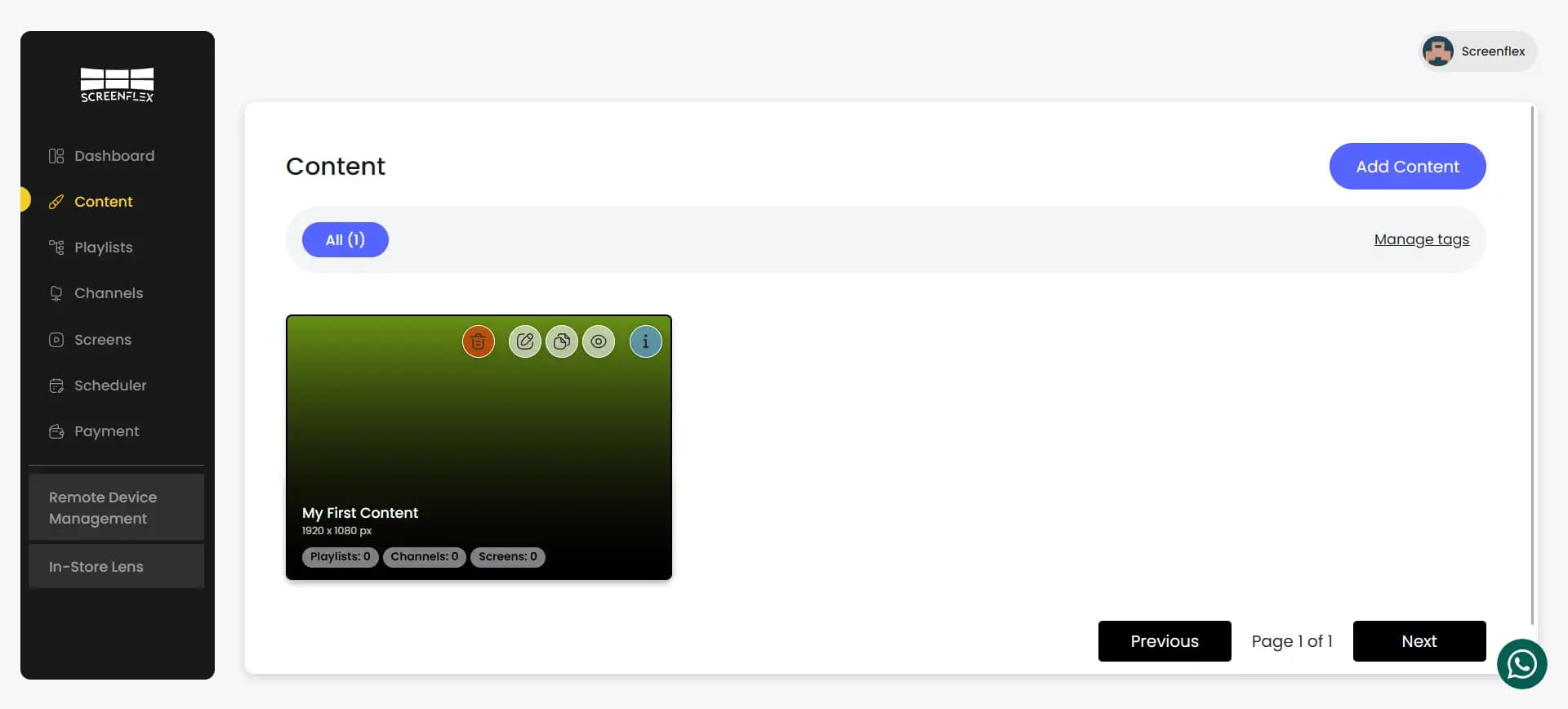
This section functions as your asset library—the central place where all visuals are stored.
Creating New Content
To create new content, click Add Content. A creation dialog opens and guides you through initial settings:
- Title: Choose a descriptive name such as “Morning Menu,” “Safety Rules,” or “Weekly Promotions.”
- Start From: You can begin with:
- A blank canvas
- A templatefrom the Screenflex library (organized by industry)
- Resolution and Orientation
Templates give you a quick starting point, while a blank canvas provides full flexibility.
Choose from common screen resolutions or enter a custom resolution.
All resolutions are supported.
You can also choose between landscape and portrait orientation.
After confirming these options, the content opens inside the Designer Studio, where you can begin designing.
Managing Existing Content
Once your content library grows, the Content page helps you stay organized. You can assign tags to group items by purpose—for example: “Menu,” “Corporate,” “Seasonal,” “Promotions,” or “Internal.”
Deleting content is easy, but Screenflex will alert you whether the item is being used in playlists or channels, preventing accidental disruptions on your screens.
If you maintain multiple versions of similar designs, duplicate is a quick way to speed up workflow while ensuring visual consistency.
Saving and Publishing
Whenever you finish designing or editing, click Save.
Saving instantly publishes your changes:
- Any playlist that uses this content updates automatically
- Any channel linked to those playlists updates as well
- Any screen playing those channels updates in real time
This ensures that updates reach your screens immediately without further steps.
After creating content, the next step is working inside the Canvas, where you add elements, adjust layouts, and fine-tune your design.