Getting Started
Welcome to Screenflex, your all-in-one platform for creating, organizing, and displaying digital signage content.
This page will guide you through the essential steps to set up your first screen and publish your first content.
1. Sign Up and Log In
To begin:
- Open the Screenflex web platform.
- Create an account using your email address and password.
- Log in to access the Dashboard.
Once logged in, you will see the main overview page, including:
- A map displaying screen locations
- Total counts of your content, playlists, channels, and screens
- Shortcuts like Add Content, Create Playlist, Create Channel, Add Screen
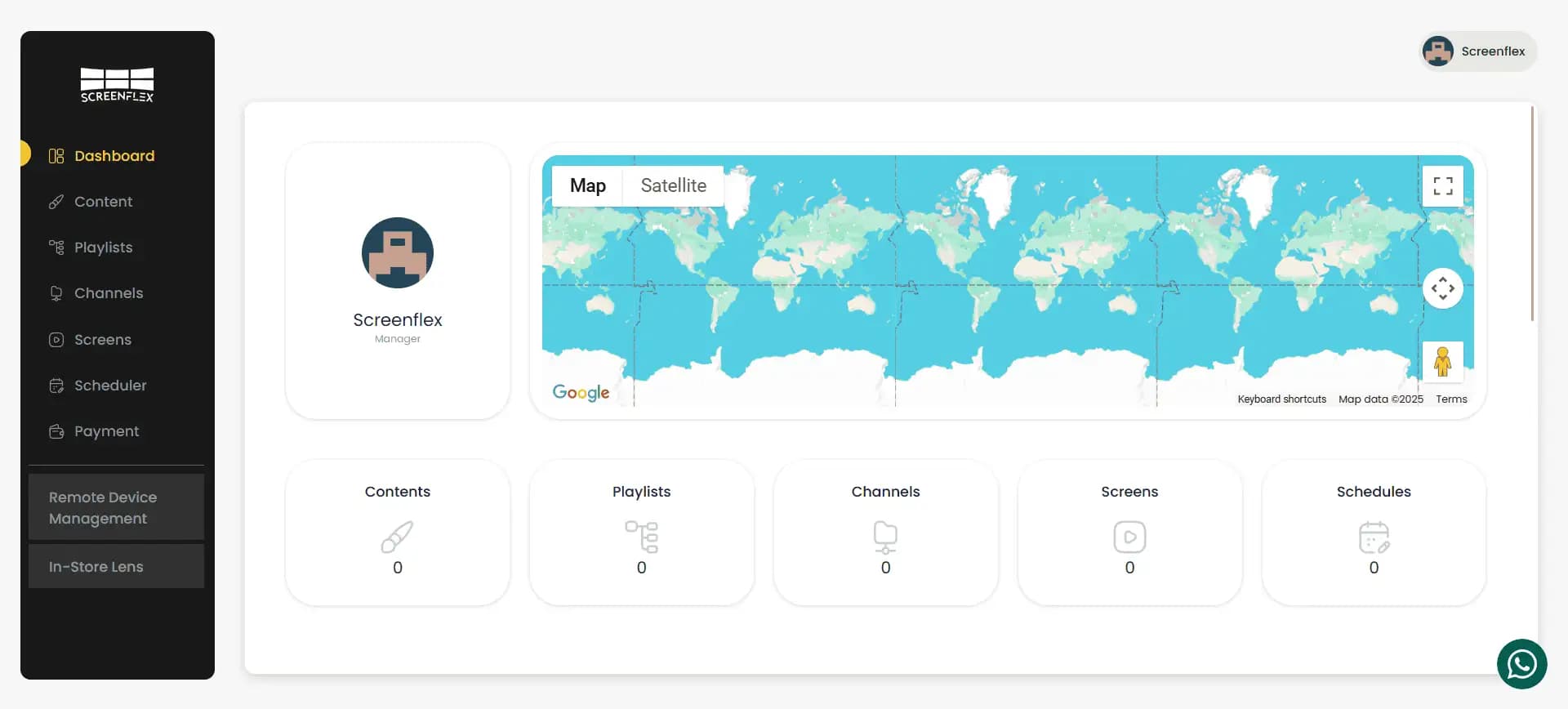
This will serve as your starting point.
2. Install the Screenflex Player App
To display anything on a physical screen, you must install the Screenflex Player App on your device.
Screenflex Player is available for:
- Android
- Windows
- Linux
- Samsung (Tizen)
After installing the app:
- Open the Player on your device.
- Keep it running — it will later ask you for a Screen Code.
You only need to do this once per device.
3. Add Your First Screen
Every device running the Screenflex Player needs to be added as a Screen inside the platform.
To add a screen:
- In the main menu, go to Screens.
- Click Create Screen.
- Enter a name for your screen (e.g., “Lobby TV”, “Entrance Display”).
- After saving, you will receive a Screen Code.
- Go back to your device running the Screenflex Player App.
- Enter this code inside the Player.
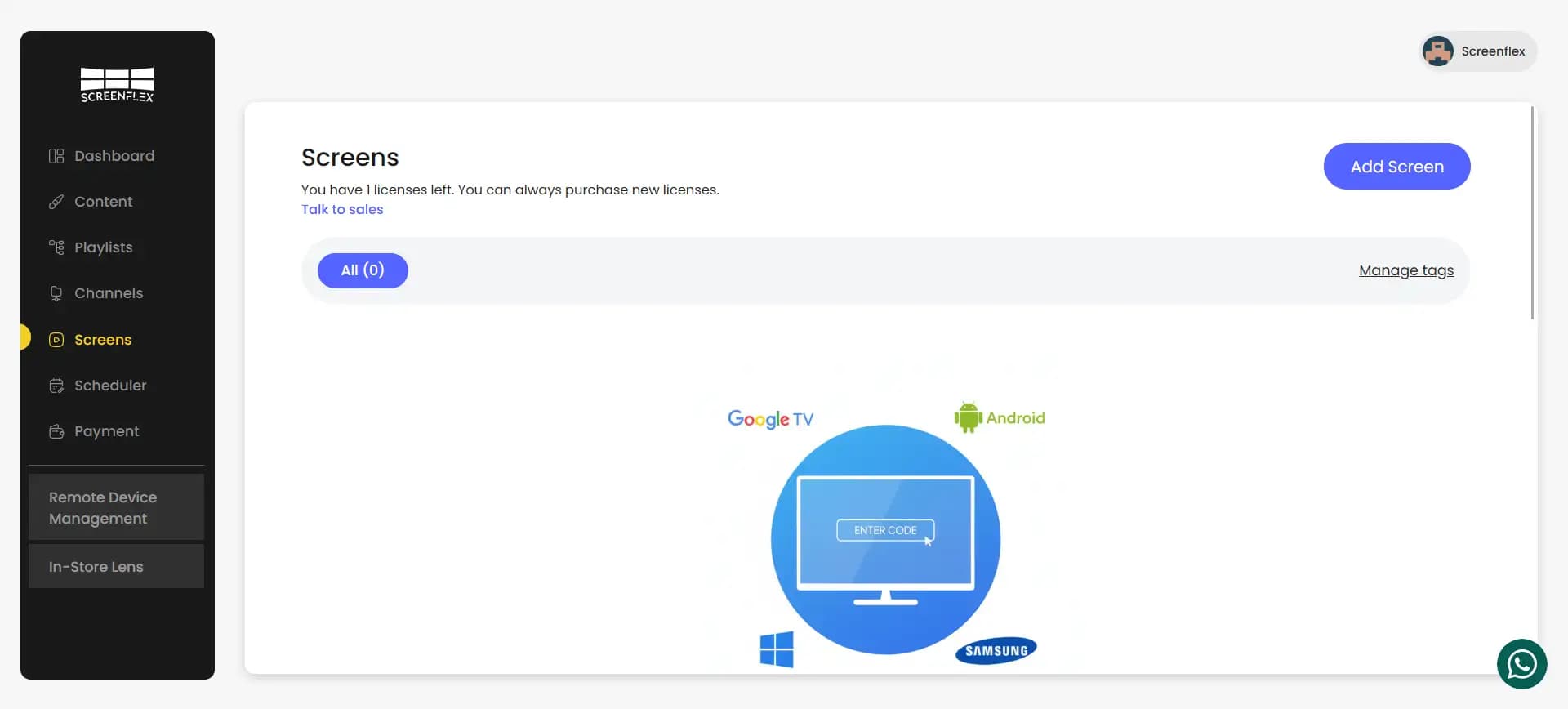
Once entered, the device is automatically linked to your Screenflex account.
You’ll see the screen appear in your Screens list and on the map.
Screens can also have tags, helping you group devices by locations, departments, or usage.
4. Create Your First Content
All digital signage starts with content.
You can create content using the built-in Designer Studio
To create new content:
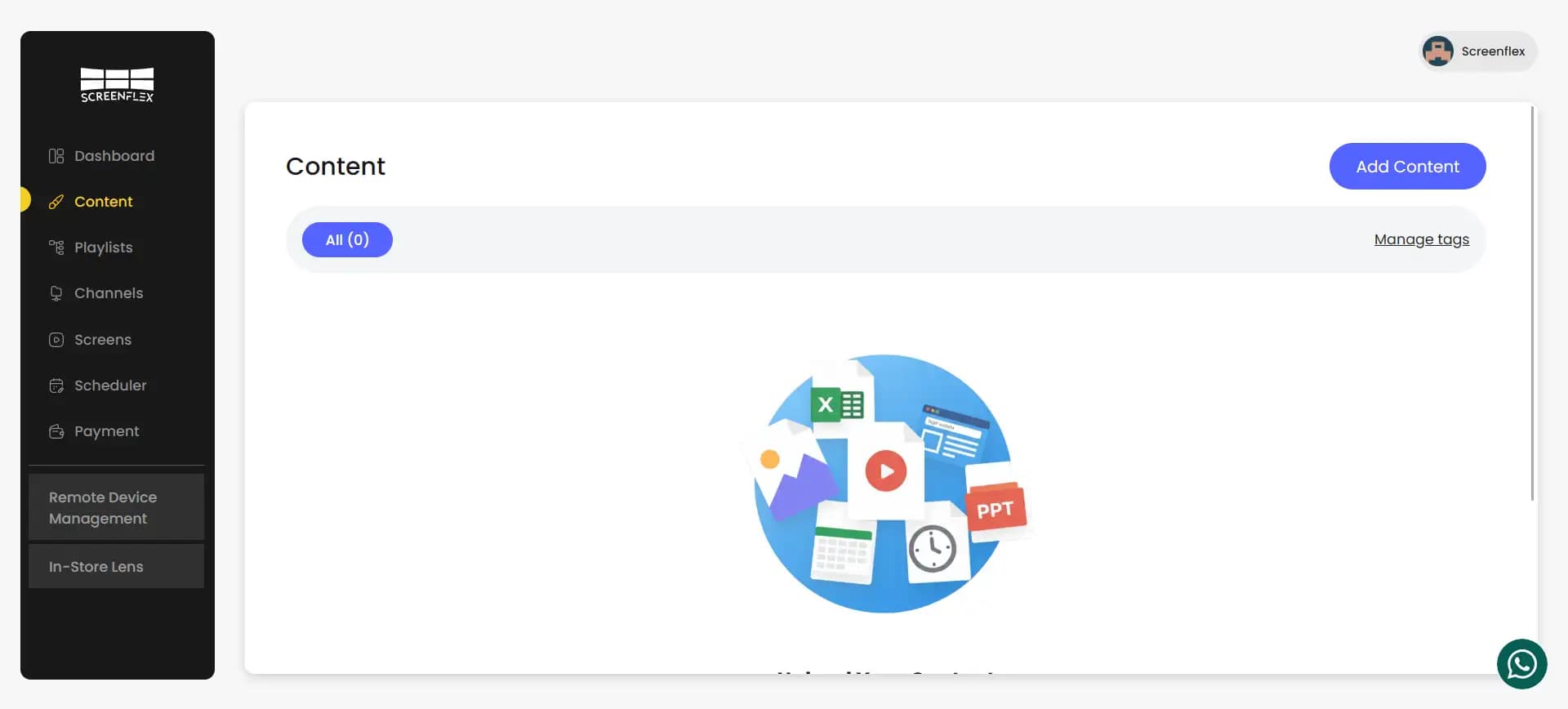
- Go to Content.
- Click Add Content (from the page or the dashboard shortcut).
- A popup will open asking you to:
- Enter a title
- Choose blank canvas or a template (Screenflex provides templates for many industries)
- Select a resolution (or set a custom one)
- Choose orientation (landscape or portrait)
- Click Create, and the Designer Studio will open.
Inside the Designer Studio
- The left toolbar allows you to add images, videos, text, sliders, embeds, Pixabay/Unsplash/Giphy, Google integrations, RSS, Website, Date/Time, Popups, and more.
- The stage (center) is your canvas.
- The right panel shows settings for the selected element (size, position, color, animations, etc.).
After designing your content, click Save.
Your content is published instantly and appears in your content list.
5. Add Content to a Playlist
Playlists define the order in which content plays, and for how long.
To create your first playlist:
- Go to Playlists.
- Click Create Playlist.
- Enter a name for your playlist.
- You may link it to a channel immediately or skip this step for later.
- Add content by dragging items from your library into the playlist.
- Set the duration for each item.
- Save your playlist.
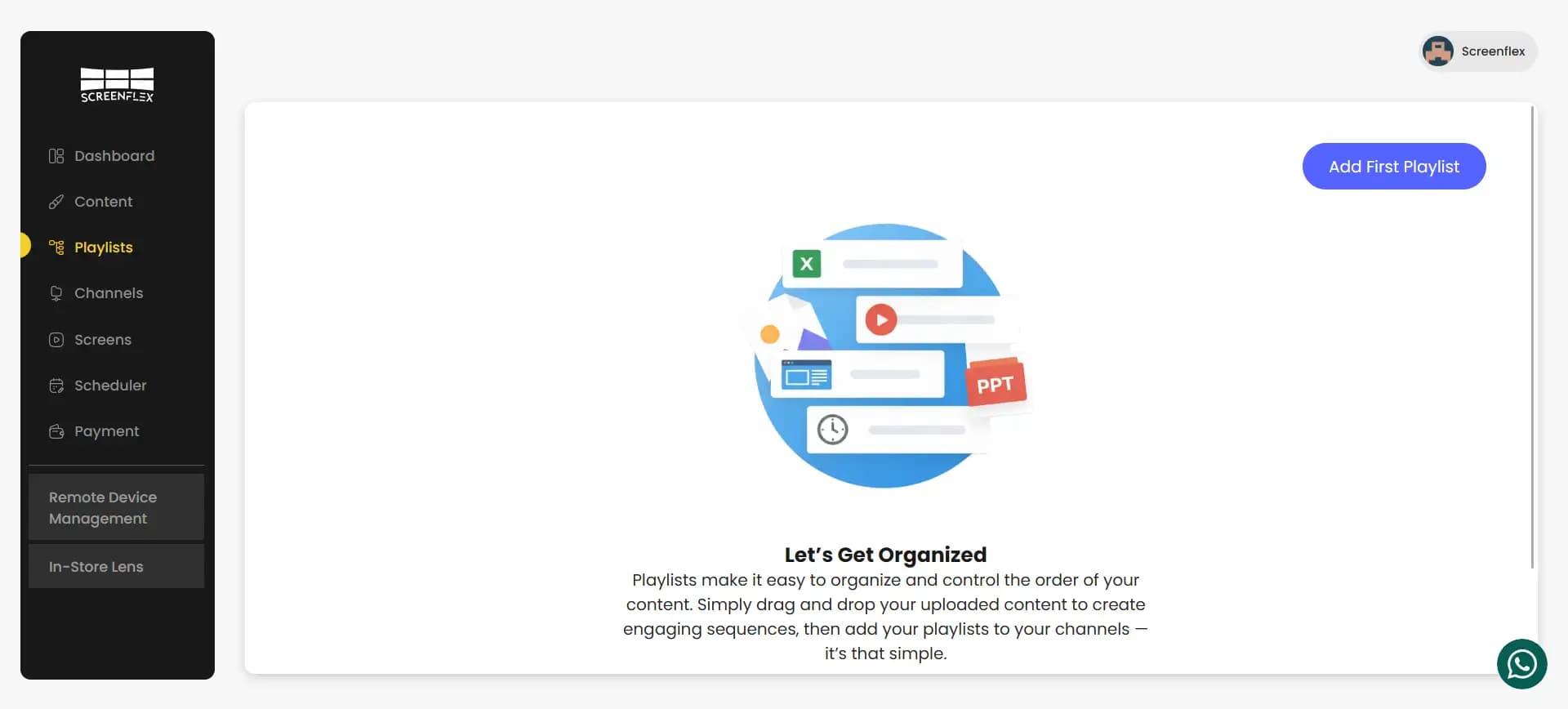
If content has a different resolution from the playlist resolution, Screenflex will show a warning, but you can still proceed.
6. Create a Channel and Assign It to Screens
Channels are the link between playlists and screens.
A channel defines what plays on which screens.
To create a channel:
- Go to Channels.
- Click Create Channel.
- Enter a channel name.
- Select a playlist to attach to this channel.
- Choose the screens that should play this channel.
- Save.
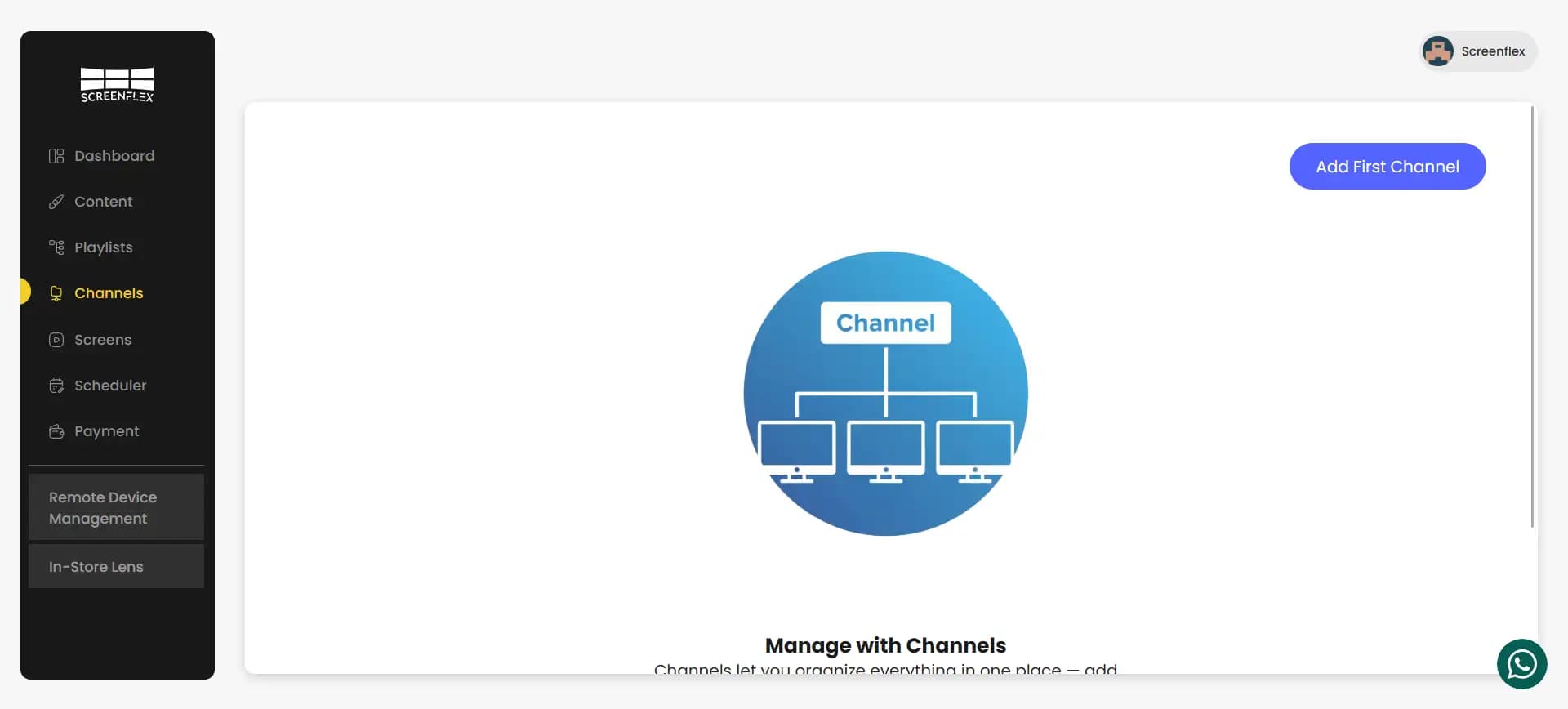
Your screens will start playing the playlist immediately.
From here, each section of the documentation will go into deeper detail, including screenshots, full feature breakdowns, and best-practice tips.