Playlists
A Playlist in Screenflex is a sequence of content items that plays in a specific order on screens. It allows you to control what appears, how long it appears, and how your audience experiences your digital signage. Playlists act as the bridge between the content you create and the channels that distribute that content to your screens.
What Is a Playlist?
A playlist is a structured list of content items that Screenflex will display one after another. Each content item in the playlist has its own duration, and you can arrange items in any order. Once a playlist is assigned to a channel, it becomes the visible stream of content delivered to one or more screens.
Playlists give you precise control over timing and sequencing. Whether you want a rotating menu, a set of safety reminders, or a cycle of promotional visuals, the playlist ensures the content plays exactly as intended.
Playlist Overview Page
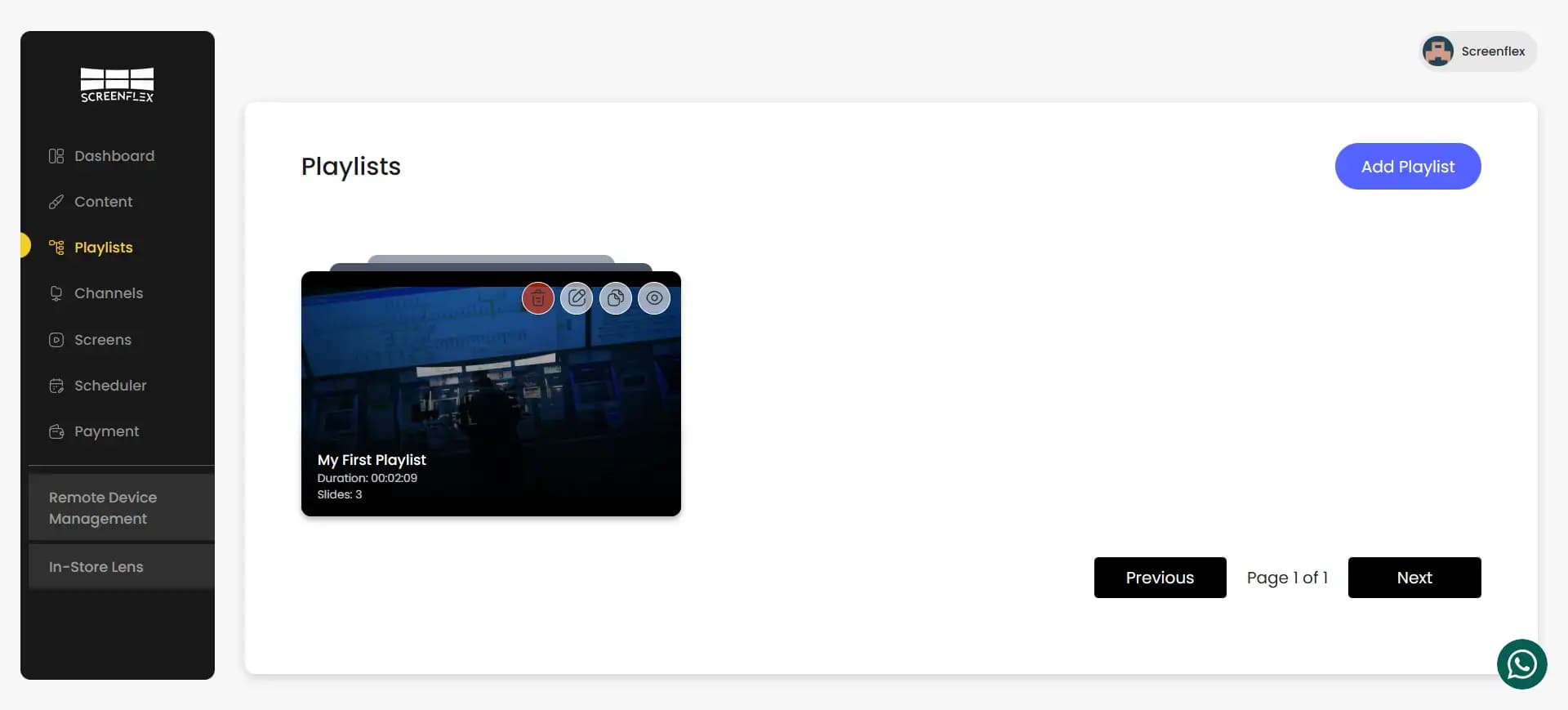
When visiting the Playlists page, you will see all the playlists you have created. Each playlist card includes:
- Name of the playlist
- Number of content items inside the playlist
- Preview of the playlist
- Total playlist duration
You can quickly scan this page to understand what each playlist contains and how long its playback loop lasts.
Each playlist card also has action buttons allowing you to edit, duplicate, delete, or preview the playlist.
Creating a New Playlist
To begin creating a playlist, click Create Playlist.
You will first be prompted to:
- Enter a playlist name
- Choose an existing channel to attach the playlist to
- Create a new channel if none exists or if you want a dedicated one
- Skip channel creation if you want to assign the playlist later
After completing this step, you will be redirected to the playlist editor.
You can always assign or change the playlist’s channel afterward.
Inside the Playlist Editor
The editor contains two main areas:
Timeline (Left Side)
This is where the playlist sequence is built. Every piece of content you add appears here as a timeline item. You can:
- Reorder items
- Adjust durations
- Remove items
- Duplicate items
The playlist plays from top to bottom in the exact order shown.
Content Library (Right Side)
This section displays all the content items you have previously created in Screenflex. Content can be added to the playlist by dragging it directly into the timeline.
Organizing Playlist Order
You can drag and drop items inside the timeline to change the playback sequence. This lets you:
- Create smooth storytelling flows
- Repeat important content by placing it multiple times
- Group certain visuals together
- Control pacing and emphasis
Playlists play from top to bottom, looping continuously unless assigned to a scheduled channel with specific time windows.
Resolution Warnings
Screenflex alerts you when content items inside a playlist have mixed resolutions. While you can still save and use the playlist, the warning ensures that you understand how scaling might appear on screen.
This allows you to maintain visual consistency, especially when working with content created in different formats.
Saving and Publishing Playlists
When you click Save, the playlist is instantly published. There is no extra publishing step. Any channel that uses this playlist updates immediately, and any screen connected to that channel begins playing the updated sequence right away.
This real-time behavior ensures you can update content quickly and immediately reflect changes across your screen network.
Editing an Existing Playlist
To edit a playlist, simply open it from the Playlists page. You may:
- Add new content
- Remove items
- Change durations
- Rearrange order
- Rename the playlist
Every change you save is propagated instantly throughout the system.
Playlists can be edited at any time, even while they are actively running on screens.
Duplicating and Deleting Playlists
If you want to create a variation of an existing playlist—such as a seasonal version or language-specific version—you can use the Duplicate action. This creates a new playlist with the same items and durations, giving you a head start.
Deleting a playlist is permanent. If a playlist is currently used in a channel, Screenflex will show a warning before deletion to prevent accidental disruption.